How to Free Up Phone Storage

Does your phone keep telling you that your storage is full right when you want to take a picture? Running out of space is so annoying, but you can fix it in a few minutes without losing your favorite things.
You can free up phone storage by deleting apps you never open, clearing out old text message videos, and moving your photos to cloud storage. Most people find that unneeded apps and blurry pictures take up half their space.
Find Out What Is Taking Up All Your Space
You need to check your phone settings to see what is filling up your device. Stop guessing and look at the real numbers.
If you have an iPhone, go to your home screen and open the Settings app. Tap on General, and then tap on iPhone Storage. You will see a colorful bar at the top that shows how much space you have left. Below that bar, your phone lists every app and tells you how much room it takes up.
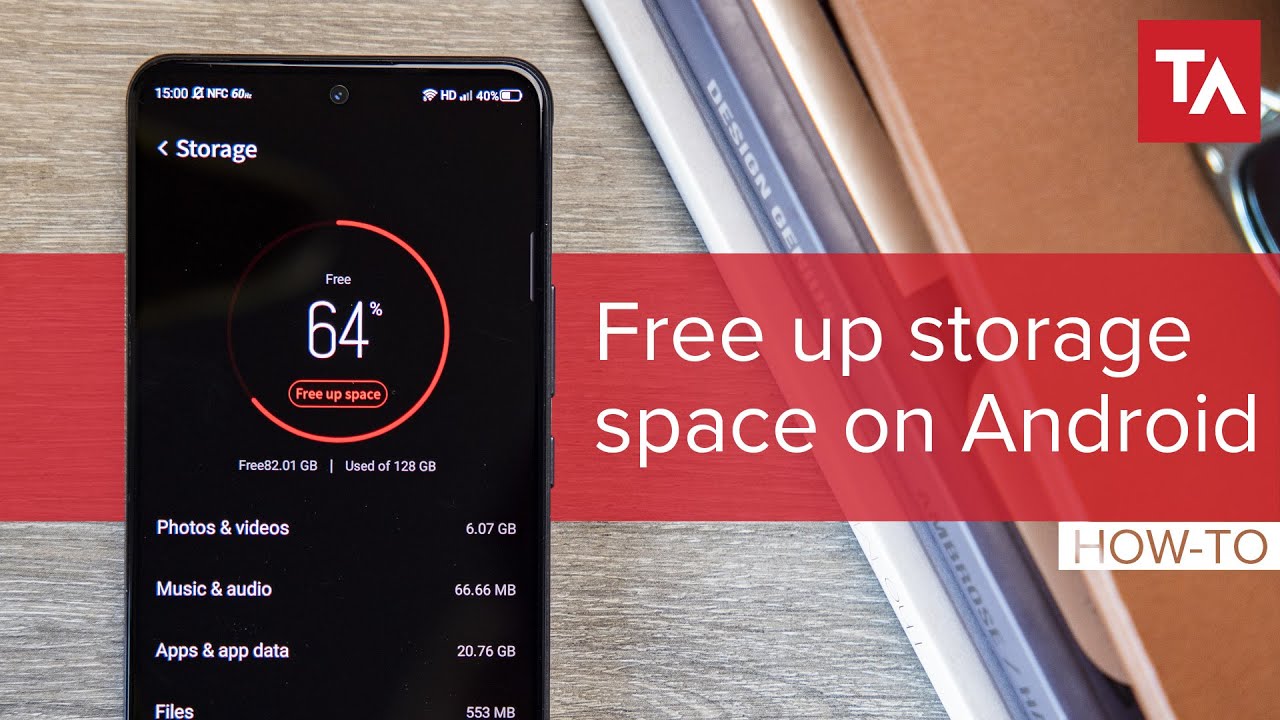
If you use an Android device, open your Settings app and look for Storage or Battery and Device Care. Tap on that option to see a breakdown of your files. You might be surprised to see that games you forgot about are taking up gigabytes of space.
My friend Sarah had a phone with only 64 gigabytes of total space. Her storage warning popped up every single day. She checked her settings and found a video editing app she used once two years ago that took up six whole gigabytes. Deleting that single app solved her problem instantly.
Delete Apps You Never Open
Most of us download random apps for a single weekend and then forget they exist. Those apps sit on your screen and eat your memory.
Scroll through your home screens and look for apps you have not touched in the last month. Do you really need that game you played on a flight last summer? Do you need three different food delivery apps when you only use one?
On an iPhone, touch and hold any app icon until a little menu pops up. Tap Remove App, and then tap Delete App to get rid of it completely. You can always download it again from the App Store later if you truly miss it.
On an Android phone, touch and hold the app icon and drag it up to the trash can or uninstall button at the top of your screen. You can also visit the Google Play Store, tap your profile picture, tap Manage apps and device, and sort by least used to clean house fast.
Remember that deleting an app also deletes its local files, which saves even more room. A single social media app can hide gigabytes of cached data in the background. Clearing out ten dead apps can give you enough room for thousands of new songs.
Clear Out Old Photos and Videos
Photos and videos are usually the biggest storage hogs on any modern Smartphone. We take twenty shots of the same sunset just to pick one good one, and then we keep all twenty.
Open your camera roll and go on a quick deleting spree. Delete blurry shots, screenshots of random web pages, and duplicate videos of your cat sleeping. Do not forget to empty your Recently Deleted folder afterward. iPhones and Android devices hold onto deleted pictures for thirty days just in case, which means they still take up space until you clear that folder out.
If you want to keep your memories without crowding your device, back them up to a safe place. Moving your files to a cloud service is a smart way to keep a Backup of everything you love. You can also read about amazing survival stories like Juliane Koepcke: The Girl Who Fell From A Plane And Walked Out Of The Jungle while you take a short break from cleaning your tech.
Google Photos and iCloud give you free online space to store your pictures. Once your photos are safely uploaded to the cloud, you can delete them from your local device storage. Just make sure the upload is finished before you hit that delete button.
Clean Up Text Messages and Downloads
Your text message history holds a lot of hidden weight. Every funny GIF, voice note, and video clip sent by your family members stays on your device forever unless you change the settings.
On an iPhone, open Settings, tap Messages, and scroll down to Keep Messages. Change that setting from Forever to 30 Days or 1 Year. Your phone will automatically delete old chat attachments and save you a ton of trouble.
Check your Downloads folder as well. Every PDF menu, boarding pass, and email attachment you ever opened on your browser lives in that folder. Open your Files app, tap on Downloads, and sort through the list.
Mark the old files you do not need and send them to the trash. It feels so good to start fresh with a clean downloads folder. You might even find a document you lost months ago while doing this quick sweep.
Try to make storage cleaning a monthly habit. Spending five minutes on your phone once a month keeps the storage warnings away for good. What app are you going to delete first today?
Clear Your Web Browser Cache
Your web browser stores bits of every website you visit to make pages load faster next time. Over months and years, these tiny pieces add up to a huge pile of digital junk. Open your preferred browser app, find the privacy settings, and look for clear browsing data. Deleting your cached images and files takes just a second and can recover a surprising amount of room.
Manage Your Music and Podcast Offline Downloads
Listening to your favorite tunes offline is great for road trips, but those downloaded files take up permanent space. Check your music and podcast apps to see what you have saved.
- Delete podcast episodes you already finished listening to.
- Remove whole music albums that you no longer enjoy.
- Change your app settings to automatically delete played episodes.
Streaming your audio instead of saving it locally keeps your memory open for more important things.